How To Transfer Photos To TV For Big Screen Viewing
Transfer photos from your phone to your TV for slideshows and family viewing, with tips on selection, order, formats, and storage.
A phone gallery is a private album, but photos deserve an audience. Transferring pictures to the TV turns a handful of swipes into a shared slideshow, which is how holiday photos, family events, and old scans are meant to be seen.
This guide shows how to select, send, and display photos with Send Files To TV for Android, plus the small organisational habits that make a slideshow feel polished instead of random.
Select And Organise Photos Before Sending
Choose the set before you transfer. Create an album or favourites list on the phone so the TV receives only the photos you want to show. Mixed dumps of screenshots, duplicates, and blurry shots break the flow of a slideshow and waste TV storage.
Order matters too. Photos usually display in file order, so a set arranged chronologically tells the story properly. If your gallery sorts the album, the transfer keeps that order in most cases. In practice, Send Files To TV keeps this step simple because the same controls appear on phones, tablets, and TVs.
Send The Photo Set To The TV
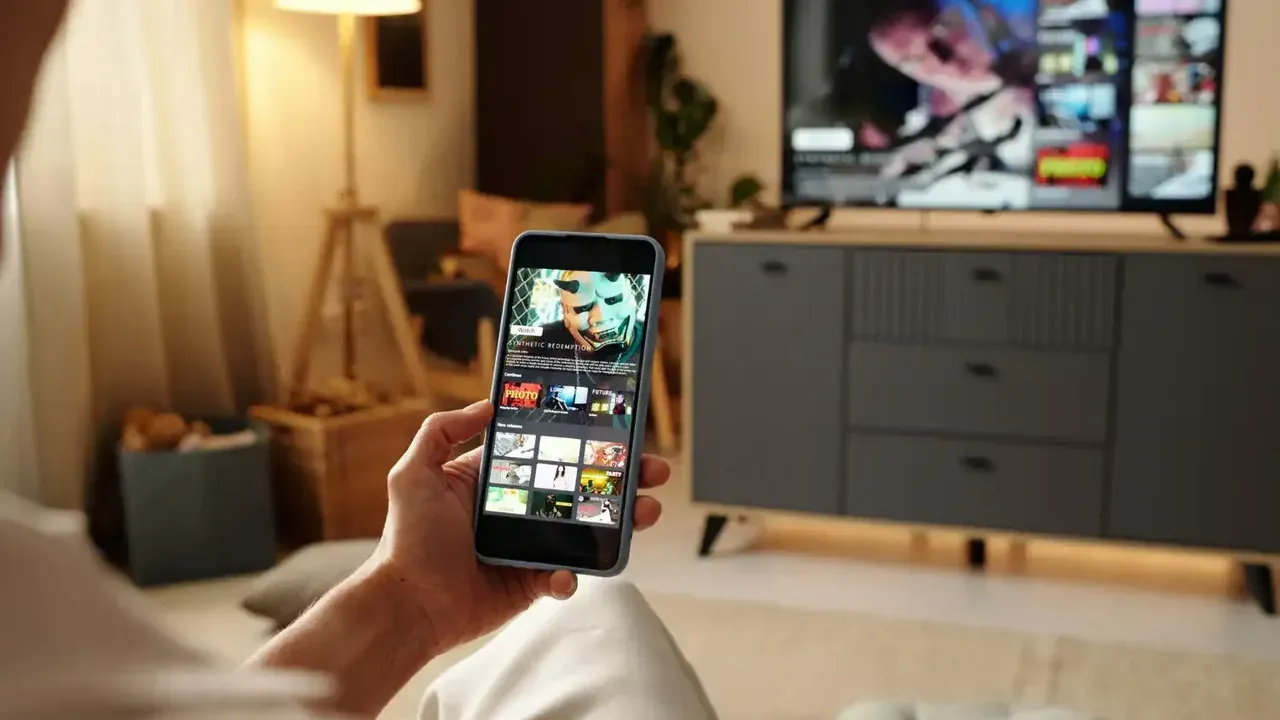
Open the app on the TV in receive mode, then select the album or the individual photos on your phone and send them to the TV. Photos are small compared with videos, so even a few hundred pictures transfer quickly on a home network.
Our Smart TV sharing guide covers the Smart TV side of the connection if your television is not an Android TV model. The receiving steps are the same once the app is running on the big screen. This is where Send Files To TV earns its place in a home setup, since the routine stays identical on every Android screen.
Display Photos As A Slideshow
Most TV gallery and media apps include a slideshow mode that advances photos every few seconds. Start it from the first image in the transferred folder. If your TV player lacks a slideshow, opening photos one by one with the remote still works well for smaller sets.
For older scanned photos, the big screen reveals detail the phone hides. It is also the easiest way to spot which scans need cleaning or re-scanning while the family remembers the stories behind them. Regular Send Files To TV users fold this check into their normal routine and rarely think about it afterwards.
Formats, Quality, And Storage
JPEG and PNG photos display on virtually every TV. The transfer copies the original file, so the TV shows the full resolution version rather than a compressed preview, which is why transferred photos look sharper than cast ones.
The Android to Android transfer guide explains phone to phone sharing with the same app, which is handy when the photos you want live on someone else's device. Gather them onto one phone first, then send one clean set to the TV. Send Files To TV handles the technical side in the background, so your attention stays on the files themselves.
Frequently Asked Questions
Conclusion
Photo transfer is the friendliest way to learn this app, because files are small, results are instant, and the payoff fills the room.
Curate the set, send it in one go, and let the TV do what it does best: turn small memories into shared ones.