How To Send Videos From Phone To TV
Send videos from your phone to your TV without cables. Learn preparation, transfer steps, playback checks, and fixes for common video sharing problems.
Phones record the moments that matter, but a phone screen is a small place to relive them. Sending a video to the TV turns a private clip into something the whole room can watch, and it avoids the cables, casting quirks, and cloud uploads that other methods involve.
This guide covers the full workflow with Send Files To TV APK download: preparing the video, sending it, finding it on the TV, and fixing the small problems that can appear. The same steps work for short clips and full length recordings.
Prepare The Video Before Sending
Find the exact clip first. Open it in your gallery, confirm it plays, and note its size. Trimming a long recording before sending saves time and TV storage, and most gallery apps include a simple trim tool. If the video was sent to you through a messaging app, save it to the gallery so the transfer app can see it.
Check the TV has enough free storage for the file, especially for 4K recordings that can reach several gigabytes. A quick storage check prevents the most frustrating failure, which is a transfer dying near completion. In practice, Send Files To TV keeps this step simple because the same controls appear on phones, tablets, and TVs.
Send The Video In A Few Taps
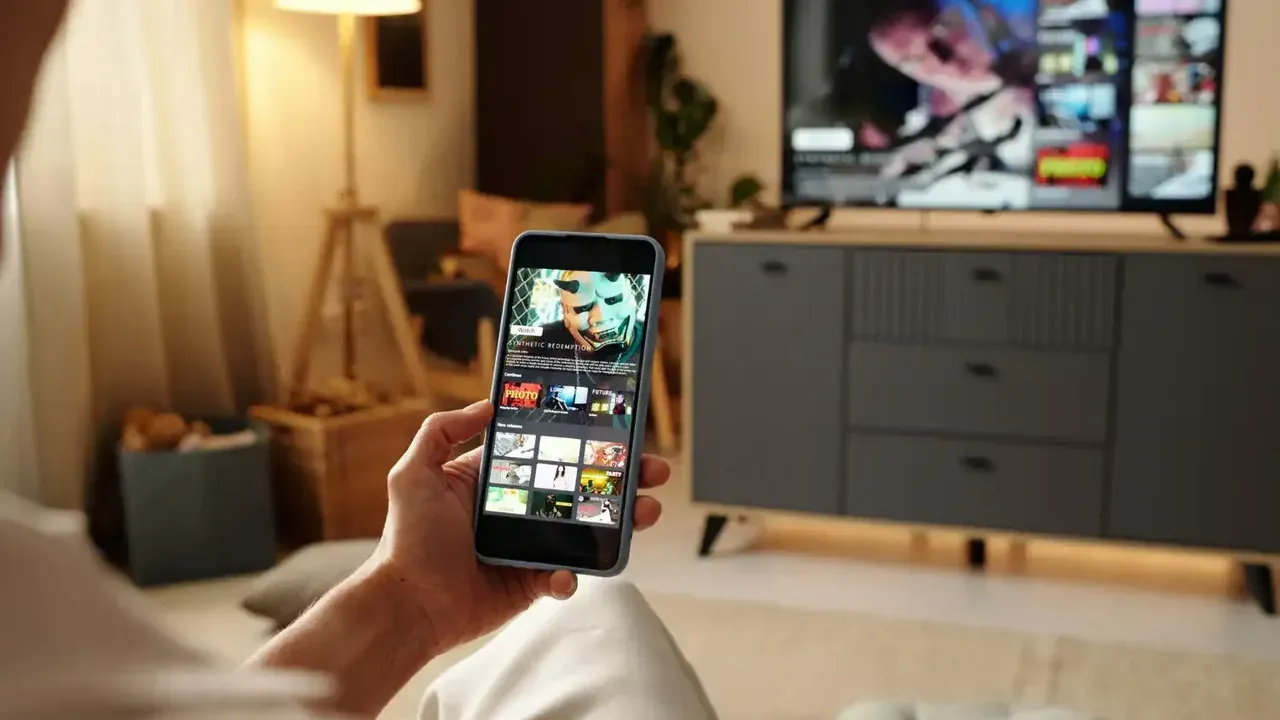
Open the app on the TV and choose receive, then open it on your phone and choose send. Select the video from the file picker, choose your TV from the device list, and confirm. Progress shows on both screens, so you can watch the transfer from either side of the room.
The detailed walkthrough in our guide to using the app on Android TV covers the Android TV screens step by step. Once you have done it once, the routine takes under a minute to start for any later video. This is where Send Files To TV earns its place in a home setup, since the routine stays identical on every Android screen.
Find And Play The Video On The TV
After the transfer, the video sits in the app folder or downloads area on the TV. Open it with the TV media player or a file manager. Most Android TV players handle common formats such as MP4 without extra setup, and the video plays from local storage, so there is no buffering.
Local playback is the quiet advantage of this method. Unlike streaming from the phone, the TV plays its own copy, which means smooth playback even if the phone leaves the room or the network gets busy. Regular Send Files To TV users fold this check into their normal routine and rarely think about it afterwards.
Fix Common Video Sharing Problems
If the TV cannot see the phone, confirm both are on the same network and the app is open on both. If a video plays without sound or refuses to open, the format may be unusual; converting the clip to MP4 on the phone solves most cases. Our wireless transfer guide explains how the wireless link behaves when devices struggle to connect.
For stuttering transfers, move the phone closer to the router and pause other downloads. Video files are large, so they benefit most from a clean network during the send. Send Files To TV handles the technical side in the background, so your attention stays on the files themselves.
Frequently Asked Questions
Conclusion
Sending videos to the TV is a three part habit: prepare the clip, transfer it over the local network, and play the local copy on the big screen.
Once the routine is familiar, the phone becomes the camera and the TV becomes the cinema, with no cables between them and no waiting for uploads.